

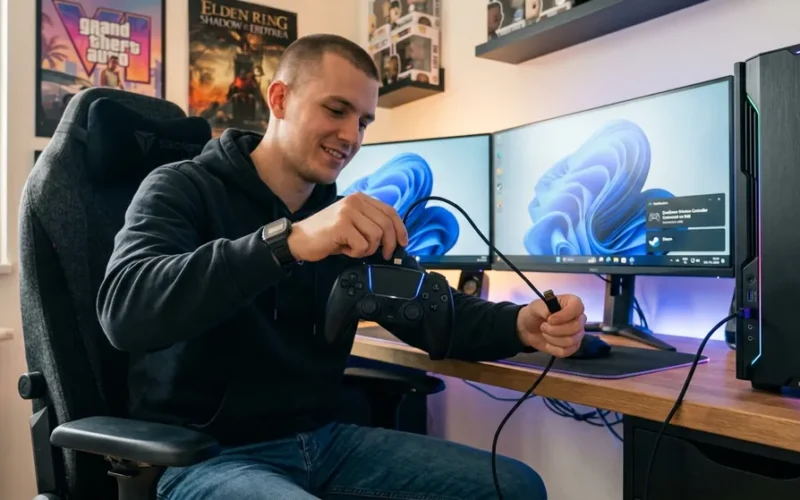
If you have been trying to figure out how to Connect PS5 Controller to PC and ending up with confusing instructions that assume you already know half the steps, this guide is written specifically for you. Learning how to connect a PS5 controller to a PC is genuinely much simpler than most people expect, but a couple of small details can derail the whole process if nobody explains them clearly. This walkthrough covers everything from the wired USB method to Bluetooth pairing reveals, Steam setup and the most common problems people hit along the way. Whether you are a first-time PC gamer or someone switching from console, the steps here will get you up and running quickly and confidently.
Why You Would Want to Connect PS5 Controller to PC?
The PS5 DualSense controller is one of the best controllers ever made. Its ergonomics feel natural for long gaming sessions and the build quality is excellent. When you already own one and you sit down to game on PC, it makes complete sense to want to use it instead of buying a separate gamepad. The good news is that Windows supports it well, Steam has excellent native recognition for it, and getting it working takes only a few minutes once you know the right steps.
The DualSense also brings a level of tactile feedback that no other controller currently matches. Even on PC, games that have implemented DualSense support deliver an experience that generic gamepads simply cannot replicate. The combination of haptic motors and adaptive triggers means actions like drawing a bowstring or driving on rough terrain actually feel different under your fingertips. That alone is reason enough to use it on PC rather than settling for a lesser Connect PS5 Controller to PC.
According to Sony’s official Connect PS5 Controller to PC for PlayStation PC support documentation, the DualSense is designed with broad cross-platform compatibility in mind including PC use.
Two Methods to Connect PS5 Controller to PC
There are two ways to connect a PS5 controller to a PC. The first is using a USB cable, which is the fastest and most stable approach. The second is using Bluetooth for a wireless experience. Both methods work well. The right choice depends entirely on how you have your gaming setup arranged and how far you sit from your PC while playing.
If you game at a desk with your PC directly in front of you, USB is ideal because it is instant, requires no pairing process and has zero latency concerns. If you play on a couch with your PC connected to a TV across the room, Bluetooth is the obvious answer. For a technical breakdown of USB vs Bluetooth input latency in gamepad connections, Digital Foundry’s controller latency analysis provides one of the most rigorous comparisons available.
Method 1: Connect PS5 Controller to PC Using a USB Cable
This is the simplest way to connect a PS5 controller to a PC. Windows 10 and Windows 11 both natively support the DualSense controller over USB, which means no driver downloads, no software installation and no configuration needed in most cases. The operating system recognizes it and handles everything automatically.
What You Need Before You Start to Connect PS5 Controller to PC?
The PS5 DualSense controller uses a USB-C port on the controller end. To connect PS5 controller to your PC using a cable you need either a USB-C to USB-A cable if your PC only has standard rectangular USB ports, or a USB-C to USB-C cable if your PC has a USB-C port available.
Use a data transfer cable, not a charging-only cable. Many cheap USB-C cables only carry power and cannot transfer data. If you use one of those, Windows will not detect the controller at all. Microsoft’s official USB-C compatibility guide explains the difference between power-only and data-capable cables clearly.
Step 1: Plug In the Controller
Connect the USB-C end of the cable to your PS5 DualSense Connect PS5 Controller to PC and the other end into a USB port on your PC. Windows will detect the device within a few seconds and install the necessary generic drivers automatically. You will likely see a brief notification appear in the bottom right corner of the taskbar.
Step 2: Confirm the Controller Is Working
To verify the connection worked properly, press the Windows key and R together to open the Run dialog. Type “joy.cpl” and press Enter. This opens the Game Controllers panel where you should see “Wireless Controller” listed. Click on it and select Properties. Press buttons on your PS5 controller and watch the inputs register on screen. If they do, you have successfully connected your PS5 controller to your PC.
Method 2: Connect PS5 Controller to PC via Bluetooth
To connect PS5 controller to a PC wirelessly you need Bluetooth. Most modern laptops have Bluetooth built in. Desktop PCs often need a small USB Bluetooth adapter, which is widely available and inexpensive. Once you have confirmed your PC has Bluetooth capability, the steps to connect your PS5 controller wirelessly are straightforward.
Getting the DualSense Into Pairing Mode
This is the single step that trips up the most people. The DualSense does not enter pairing mode on its own. You have to trigger it manually with a specific button combination, and you must make sure the controller is not still wirelessly connected to your Connect PS5 Controller to PC console when you attempt this.
Make sure the PS5 controller is powered off or disconnected from your console. Press and hold the PlayStation button and the Create button at the same time for approximately three seconds.
Step 1: Open Bluetooth Settings
Open the Start Menu and go to Settings. Navigate to Bluetooth and Devices and confirm that Bluetooth is switched on. Click the Add Device button and select Bluetooth from the options that appear.
Step 2: Pair the Controller
Windows will begin scanning for nearby Bluetooth devices. After a moment you will see “Wireless Controller” as Connect PS5 Controller to PCappear in the discovered devices list. Click on it. The pairing process completes in a few seconds and the light bar on the DualSense will settle into a steady color rather than the rapid flash, confirming you have successfully connected your PS5 controller to your PC wirelessly.
Setting Up Steam After You Connect PS5 Controller to PC
After you successfully connect your PS5 controller to your PC, Steam is where you will get the best experience. Steam has deep built-in support for the DualSense and enabling it properly means you will see PlayStation-style button prompts in compatible games instead of the generic Xbox prompts.
Enabling PlayStation Support in Steam
Open Steam and click on Steam in the top menu bar, then go to Settings and then Connect PS5 Controller to PC. You will find an option labeled PlayStation Controller Support. Turn this on. From this point forward Steam will treat your DualSense as a first-class PlayStation controller as Connect PS5 Controller to PC.
For a complete guide to Steam’s controller configuration options, Valve’s official Steam Input documentation covers every available customization option in detail.
Personel Experience as Tip:
If a game on Steam is still showing Xbox button prompts after you have enabled PlayStation Controller Support, go to that game’s page in your Steam library, click the controller icon near the bottom and manually enable Steam Input for that specific title. Some games require this individual setting to override their default behaviour.
Connecting PS5 Controller to PC for Non-Steam Games
Not every PC game runs through Steam, and this is where people sometimes struggle. When you play through Epic Games, GOG, emulators like PCSX2 or RPCS3 or any other launcher, DualSense support varies from title to title. Many modern games detect it as a standard gamepad and work immediately. Older titles may not recognize it properly.
Fixing Common Problems When Connecting PS5 Controller to PC
Even with clear instructions a few common problems can come up. Here are the most frequent issues and how to resolve each one without wasting time.
PC Not Detecting the Controller Over USB
If Windows does not recognize the controller after you plug it in, try a different cable first. This solves the problem in the majority of cases. Many USB-C cables that come bundled with phone chargers or other accessories are power-only and cannot carry data. Replacing the cable with a confirmed data-capable USB-C cable is always the first step when troubleshooting a failed wired connection.
Bluetooth Dropping or Failing to Pair
If the Bluetooth pairing fails or the connection drops repeatedly, go to your Windows Bluetooth settings, find the Wireless Controller in the paired devices list and click to forget or remove it. Then put the DualSense back into pairing mode from scratch by holding PlayStation and Create together again, and re-pair it fresh. This resolves most persistent Bluetooth issues. Microsoft’s official Bluetooth troubleshooting guide covers driver-level solutions and advanced diagnostics for more complex cases.
Haptic Feedback and Adaptive Triggers Not Working
This surprises a lot of people when they first connect their PS5 controller to a PC. The DualSense haptic feedback and adaptive trigger resistance features require game-level support built in by the developer. Most PC games currently do not have this support implemented. This is not a connection problem and is not something you can fix through any settings.
A growing number of titles are adding DualSense support over time. PlayStation’s official DualSense PC compatibility page is updated regularly as new titles add support for haptics and adaptive triggers.
FAQs
Do I need to install any drivers to connect a PS5 controller to a PC?
No, you do not need to install any drivers to connect a PS5 controller to a PC using the USB cable method on Windows 10 or Windows 11. The operating system handles the controller automatically.
Will the DualSense haptic feedback work when I connect my PS5 controller to my PC?
Only in games that have specifically built in DualSense support for PC. Most PC games currently do not implement this, so the controller will work as a standard gamepad without haptics or adaptive triggers in the majority of titles.
Why is my PS5 controller showing Xbox button prompts after I connect it to my PC?
This happens when the game does not natively recognize the DualSense. Enabling PlayStation Controller Support in Steam settings usually fixes this for Steam games.
Can I connect a PS5 controller to a PC without using Steam?
Yes, you can connect a PS5 controller to a PC without Steam entirely. Steam provides extra configuration options but the controller works across any game launcher.
What is the best Bluetooth adapter for connecting PS5 controller to PC?
For desktop PCs without built-in Bluetooth, any USB Bluetooth 5.0 adapter will work reliably with the DualSense. The TP-Link UB500 and ASUS USB-BT500 are frequently recommended in PC gaming communities for their stable driver support on Windows 10 and Windows 11.